

What a Composer round-trip looks like
A typical first prompt → finished app cycle:1
You describe what you want
Type a prompt and hit Send. Example: “Build a simple dashboard with a ‘Hello from Dimension’ header and a button that just shows an alert when clicked.”
2
Composer may ask about Data Feeds
If your app’s prompt sounds like it would benefit from data and you haven’t wired any Feeds, Composer pops a confirmation: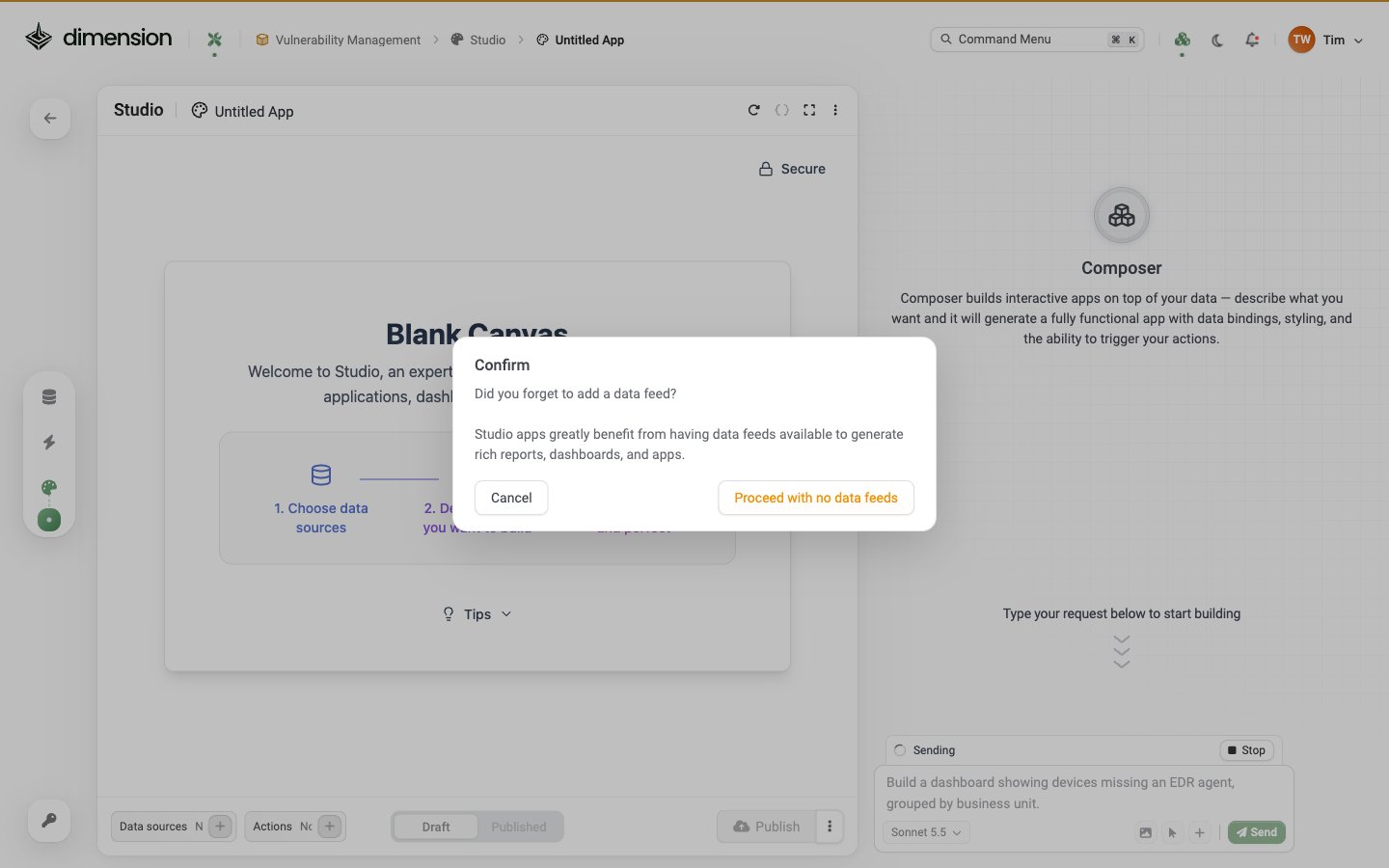
3
Composer thinks, edits, and explains
The chat panel shows a step-by-step trace:
Thought for 6.7 secondsI'll build a clean, polished simple dashboard with a header and an interactive button for you!✓ Created App.tsx✓ Saved ChangesAll done! Here's what was built:followed by a bullet list of components
4
Iterate or restore
Each completed message gets an inline Restore checkpoint action at the top right of the conversation. Use it to roll back if a refinement went sideways (see Restore checkpoint below).
Composer header
The Composer header sits above the chat log and shows:Composer footer
Four buttons sit in the input row at the bottom of the Composer: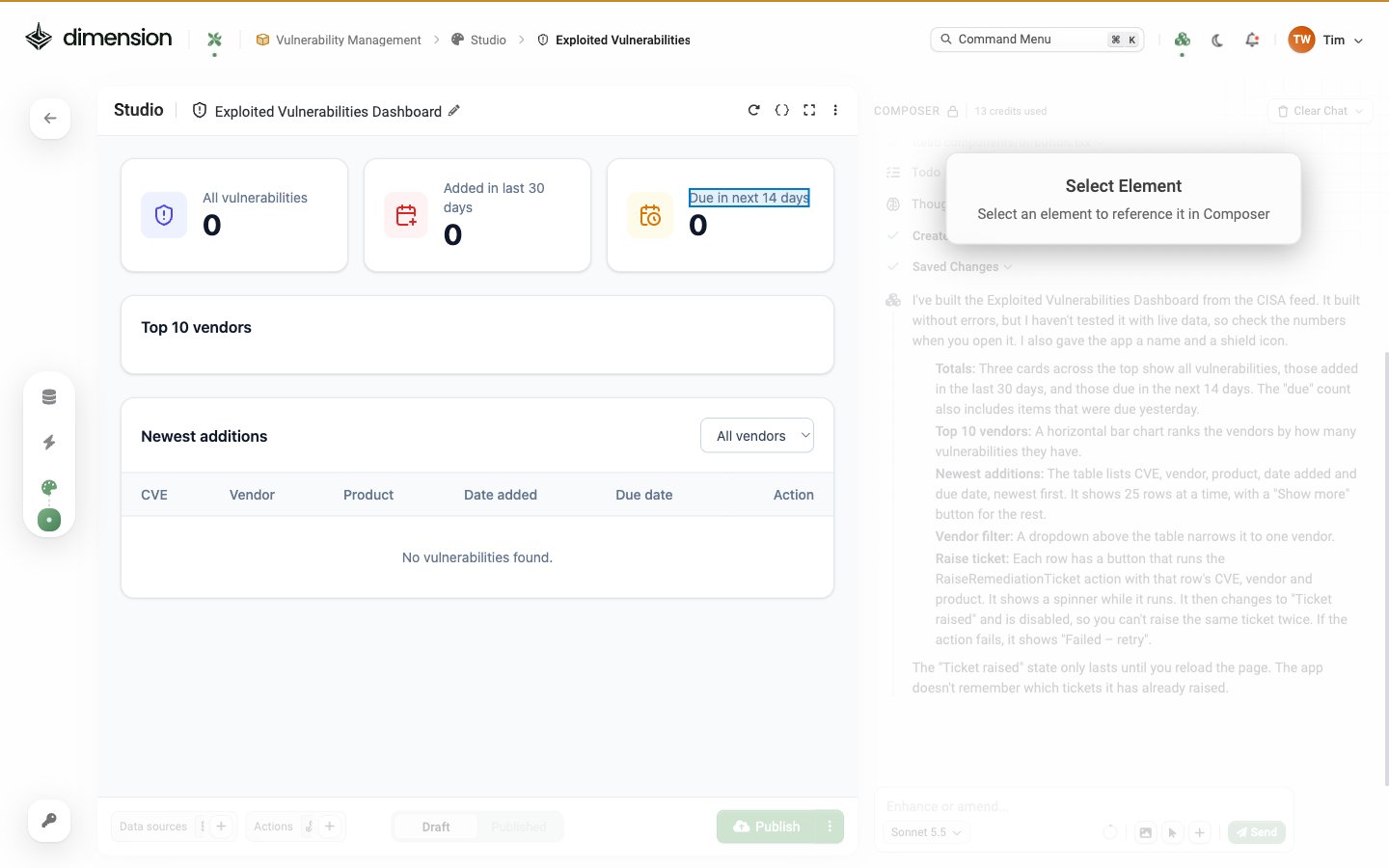
Effective prompts
- Starting Out
- Adding Visualizations
- Adding Interactivity
- Refinements
Good first prompts:Start with the big picture, then refine.
Referencing components
Three ways to point the Composer at a specific element:- Describe it — “the donut chart at the top right”, “the metric showing EDR coverage”
- Use Inspect component — click the selection arrow then click the element
- Use the Add component template menu — picks the component by name and lets you specify where it goes
Restore checkpoint
The Composer keeps the app code at every Composer turn as a checkpoint. The most recent checkpoint is restorable via the Restore checkpoint link at the top right of the conversation: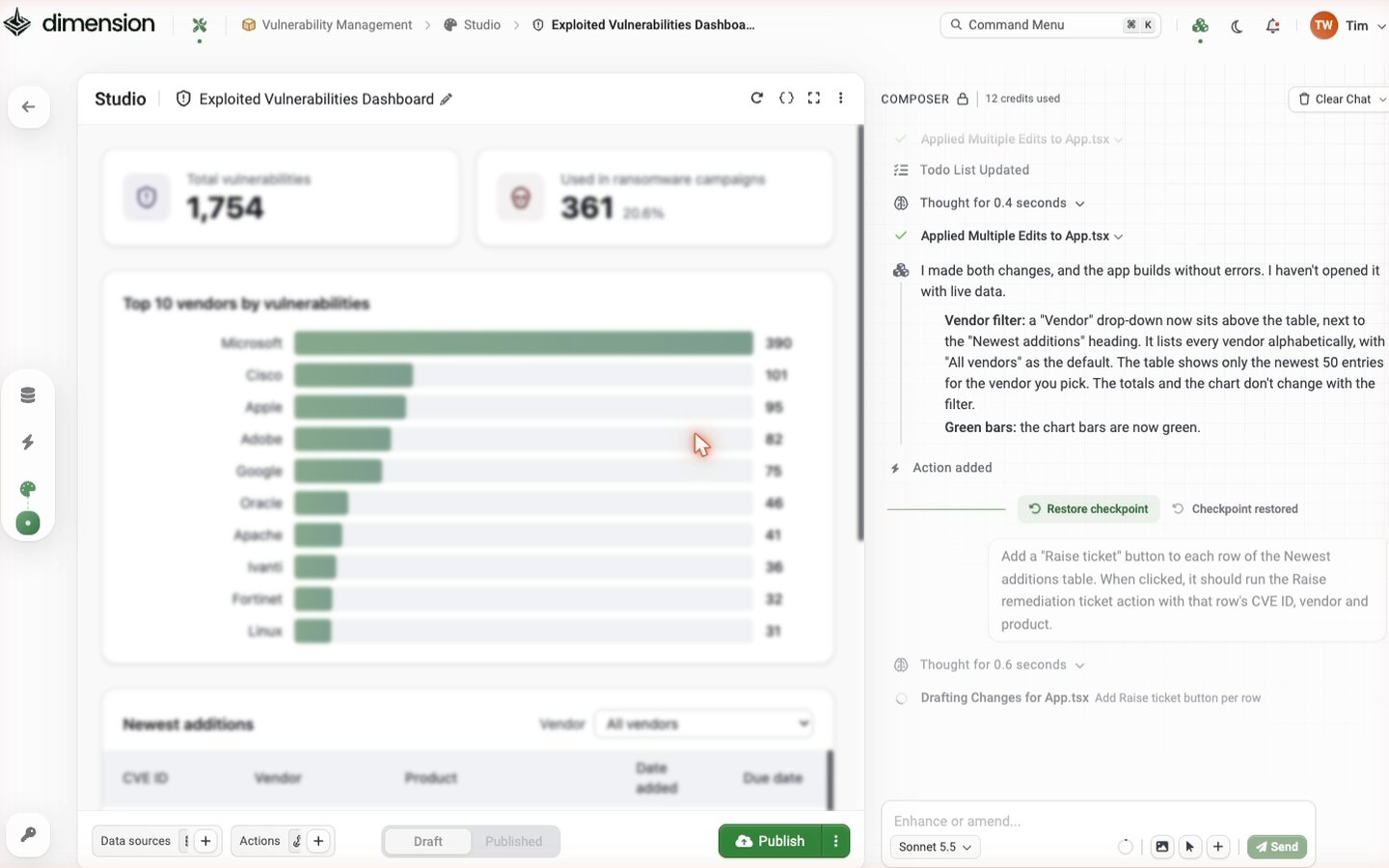
- The preview immediately reverts to the chosen earlier state (you see this live)
- A Confirm checkpoint restore prompt appears at the top of the conversation
- Confirm — locks the restore in, replacing your current Draft
- Cancel — returns to the latest state without committing the restore
Advanced features
Multi-Page Applications
Multi-Page Applications
Conditional Display
Conditional Display
Forms & Input
Forms & Input
Calculations
Calculations
Auto-Refresh
Auto-Refresh
Troubleshooting prompts
AI Not Understanding
AI Not Understanding
Try:Try:
- Break request into smaller steps
- Be more specific about what you want
- Reference existing components explicitly (or use Inspect)
- Ask for help: “How can I add a filter?”
Data Not Showing
Data Not Showing
Check:
- Data source is connected (click “Add Data”)
- Filter isn’t too restrictive
- You have permission to view the data
- Field names are correct
Hit a credit limit
Hit a credit limit
Check Settings → Usage to see AI credit usage against your billing period. The Composer header credit counter only tracks the current conversation.
Made a Mistake
Made a Mistake
- Restore checkpoint — revert to the state before a specific message (inline in the chat)
- Undo — type “undo that” in a new prompt
- Clear Chat — start a fresh conversation (the app keeps its current state)
- Clone — if badly broken, clone the published version and start modifications fresh