

Before you start
You need:- A Dimension account with access to at least one workspace
- One of the assistants below
Get your setup from Dimension
The quickest way to connect is to copy the setup from Dimension itself, because it already includes your tenant’s address.- Click your avatar in the top-right, then Connect MCP.
- Expand your assistant. The list covers Claude Code, Claude Desktop, Visual Studio Code, Visual Studio, GitHub Copilot CLI and OpenAI Codex.
- Copy the command or configuration, and follow the instructions for your assistant below.
- Authorise the connection when your browser opens.
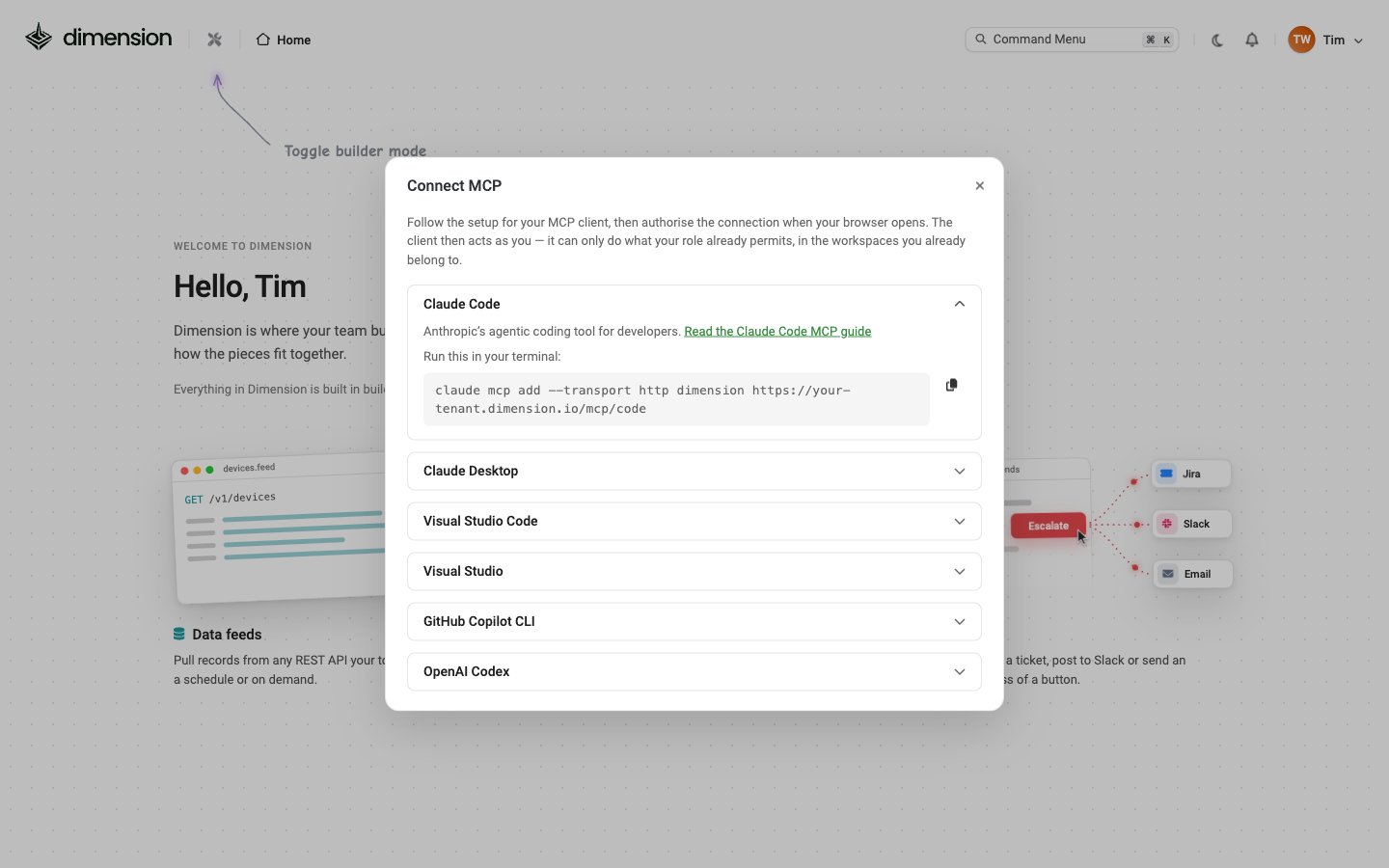
Set up your assistant
The examples below use<your-tenant> in place of your tenant’s address. If anything differs from the Connect MCP dialog, use what the dialog shows.
- Claude Code
- Claude Desktop
- VS Code
- Visual Studio
- GitHub Copilot CLI
- OpenAI Codex
What you can do
Changes start as drafts. Nothing goes live until it’s published, so test feeds and actions before you publish them.
The server also offers ready-made prompts that walk your assistant through common jobs: scaffold_feed, scaffold_action, scaffold_app and plan_from_goal. They appear in your assistant’s prompt picker. In Claude Code, for example, run
/mcp__labs__scaffold_feed.
Example prompts
- “List my workspaces and the data feeds in each.”
- “Create a data feed in the Identity workspace that pulls users from our identity provider’s API, then test it.”
- “Build a Studio app that shows MFA enrolment by department from the Identity feed.”
- “Add an action to the Patch management app that emails the IT team a weekly summary.”
Security and permissions
- The server acts as you. Every request runs with your account’s role, workspace membership and access to Dimension, so it can only see and change what you can.
- Changes stay as drafts until they’re published.
- You can remove the server at any time from your assistant’s settings.
Troubleshooting
The server doesn't connect
The server doesn't connect
Check that you’ve used your own tenant’s URL, and that your organisation allows custom MCP servers in your assistant.
Sign-in fails or loops
Sign-in fails or loops
Make sure you can sign in to Dimension in your browser with the same account, then remove the server and add it again.
The assistant can't find a workspace
The assistant can't find a workspace
The server only sees workspaces your account can access. Check your workspace visibility.