Overview

Actions are reusable integrations a Studio app can invoke — “send a Slack message”, “open a Jira ticket”, “email this report”. Each Action is built through Composer and exposed to your apps as a function they can call when a user clicks a button or a form submits. Dimension supports two Action types today:

Webhook

POST (or other HTTP methods) to any URL. Use for Slack, Jira, ServiceNow, PagerDuty, or any internal HTTPS service.

Email

Send a structured email to one or more tenant users. Useful for notifications, reports, and alerts.

Creating an Action

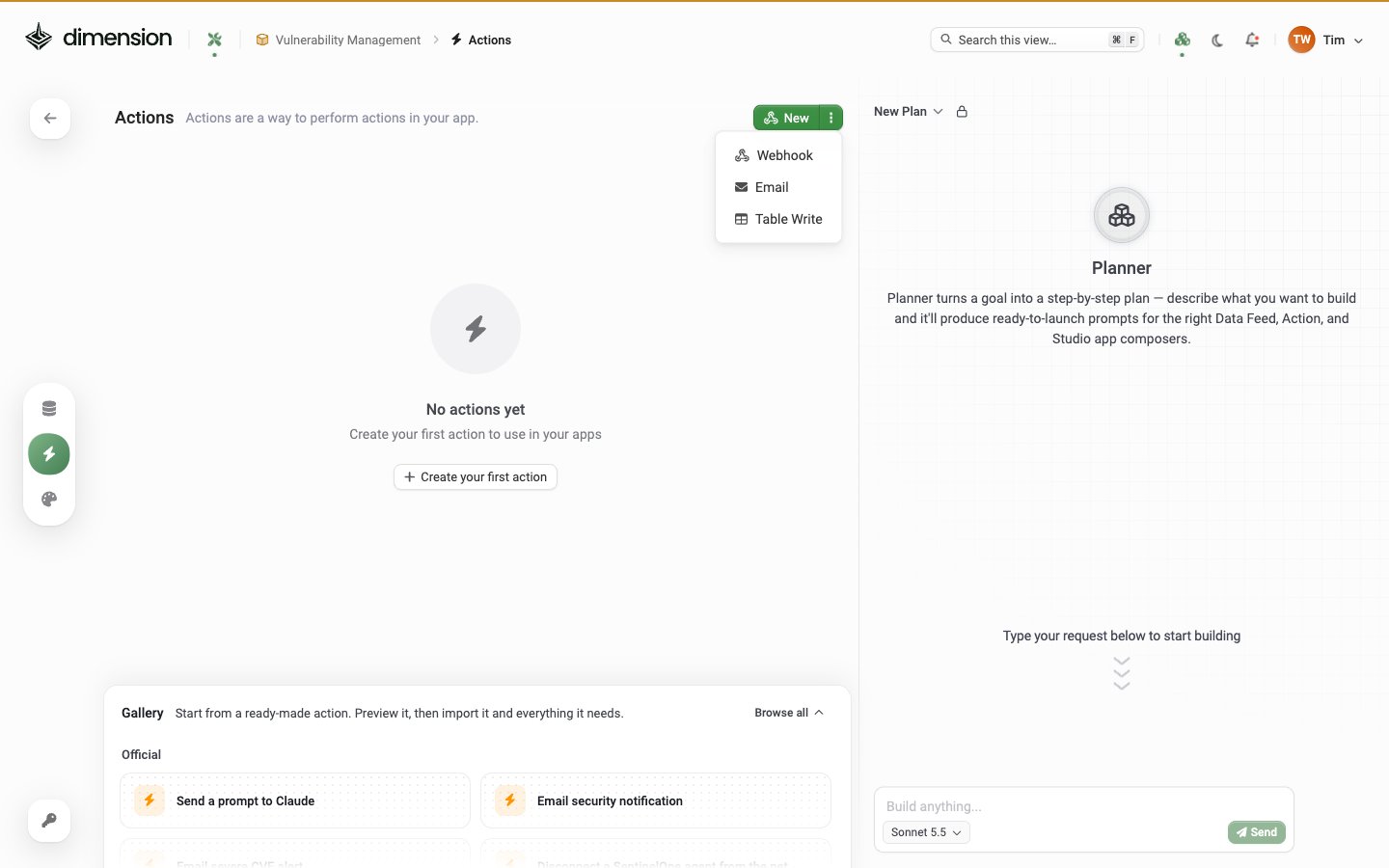
In Builder Mode, open Create Actions (the lightning bolt in the left rail), click + New and pick a type: Actions page with the New menu open, showing three options: Webhook, Email and Table Write Both types open into a 3-step inline tutorial the first time, then drop you into the editor.
Webhook tutorial walkthrough

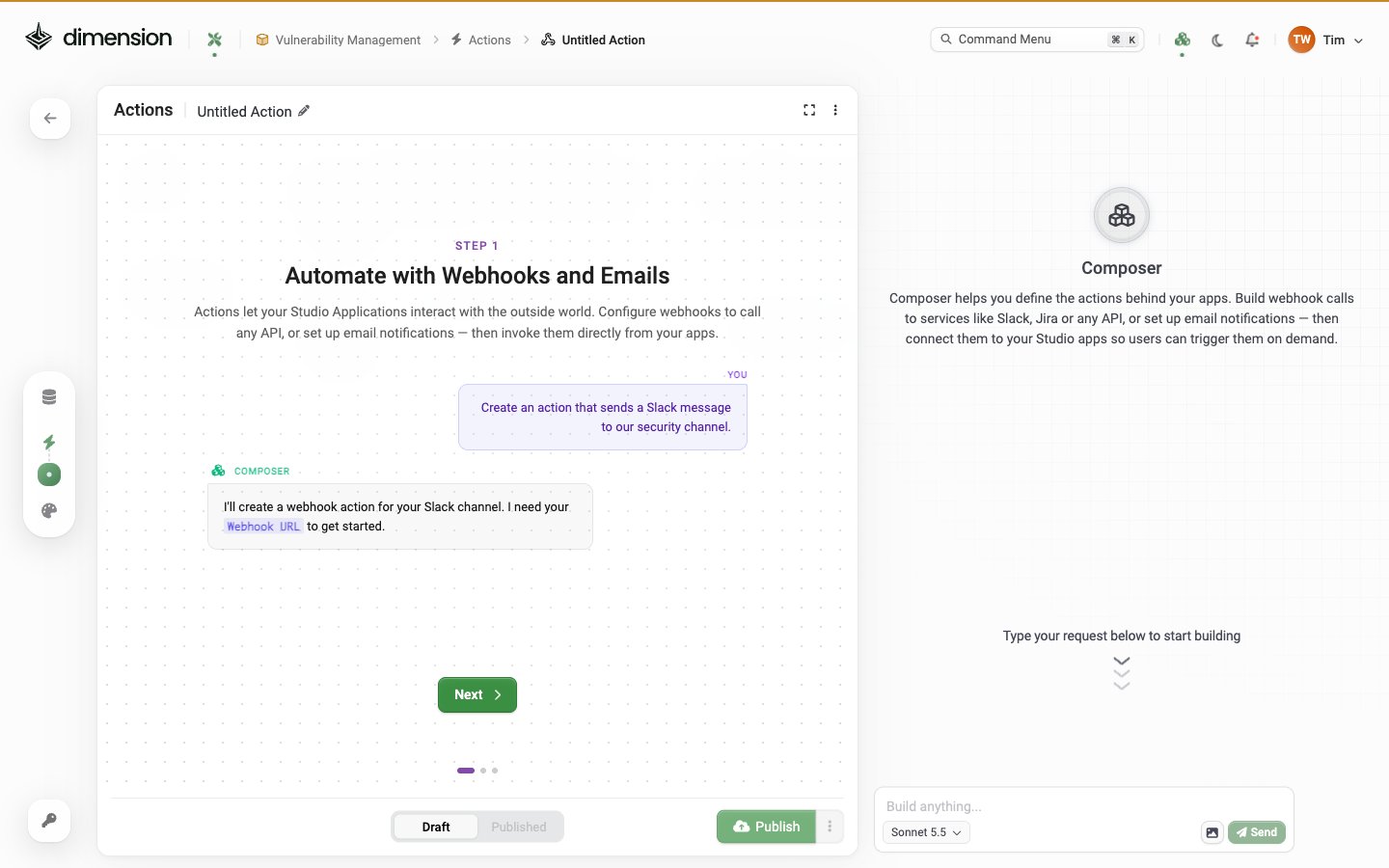
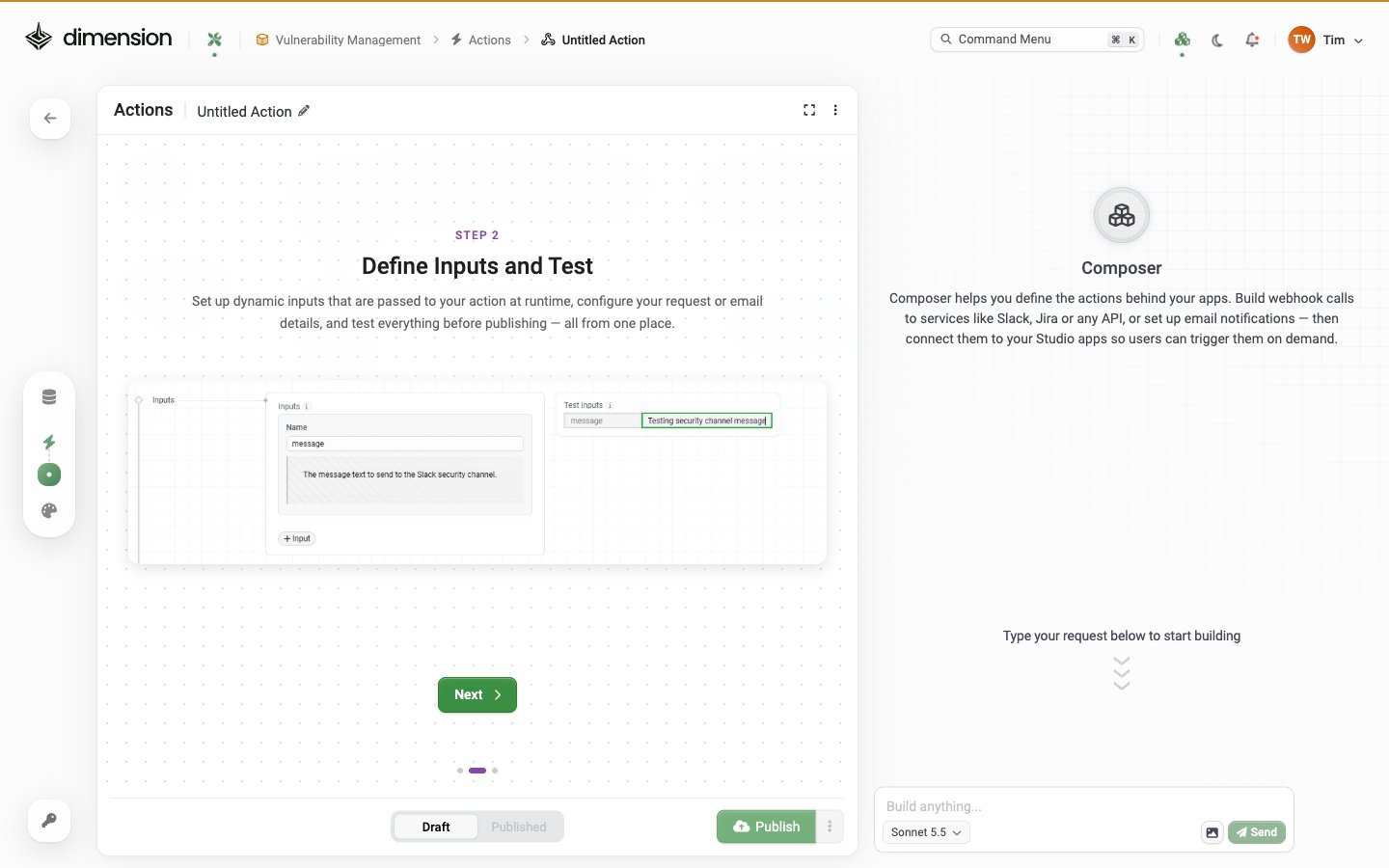
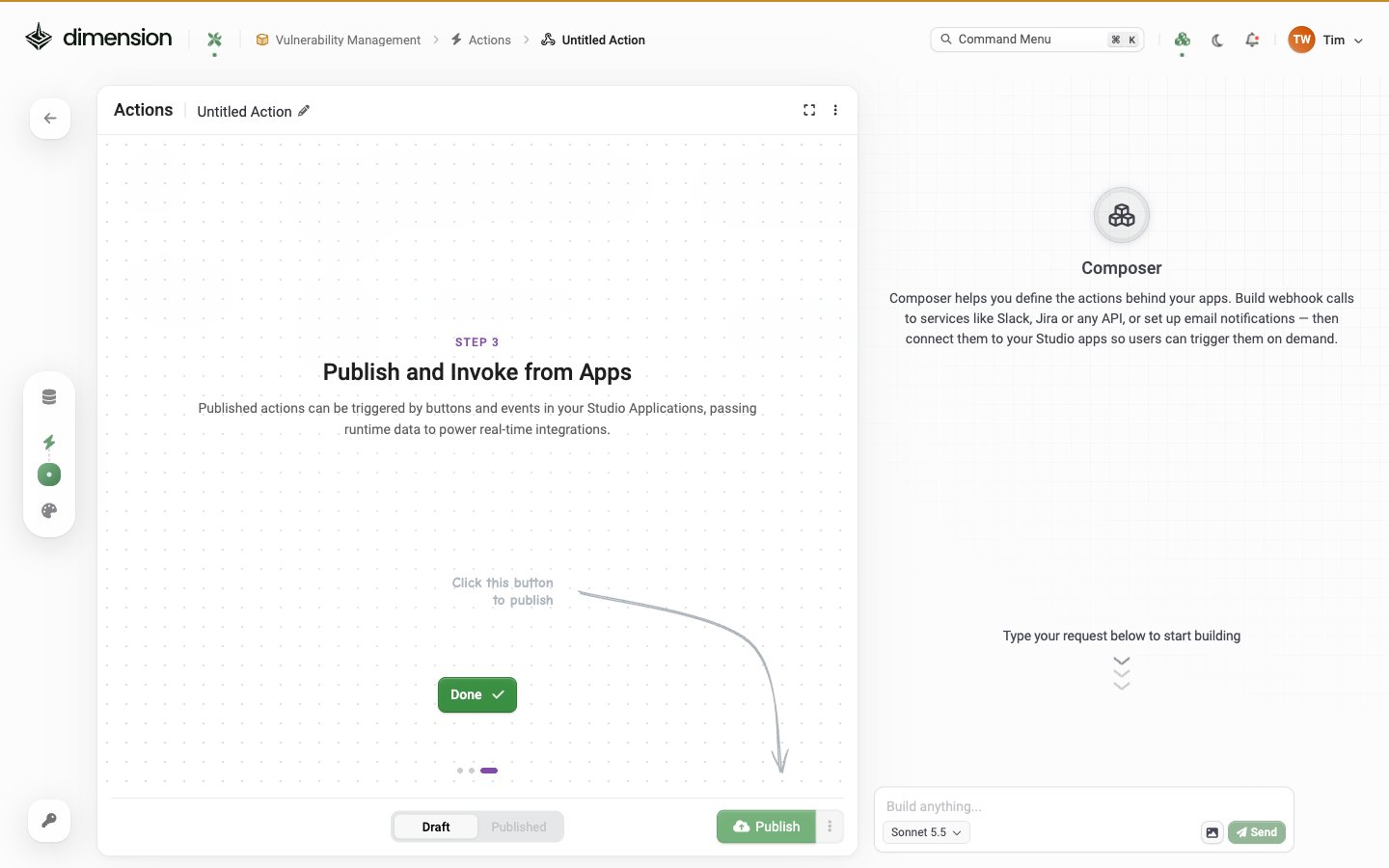
Action tutorial step 1, Automate with Webhooks and Emails: an example prompt, Create an action that sends a Slack message to our security channel, and Composer replying that it will create a webhook action and needs your Webhook URL Step 1 — Automate with Webhooks and Emails. “Actions let your Studio Applications interact with the outside world. Configure webhooks to call any API, or set up email notifications — then invoke them directly from your apps.” Webhook Action tutorial Step 2 Define Inputs and Test — shows Inputs panel with a 'message' input and a Test Inputs panel with the value Testing security channel message, ready to test before publishing Step 2 — Define Inputs and Test. “Set up dynamic inputs that are passed to your action at runtime, configure your request or email details, and test everything before publishing — all from one place.” Webhook Action tutorial Step 3 Publish and Invoke from Apps — explains that published actions can be triggered by buttons and events in Studio Applications, passing runtime data Step 3 — Publish and Invoke from Apps. “Published actions can be triggered by buttons and events in your Studio Applications, passing runtime data to power real-time integrations.” Click Done to dismiss the tutorial.

Webhook Action editor

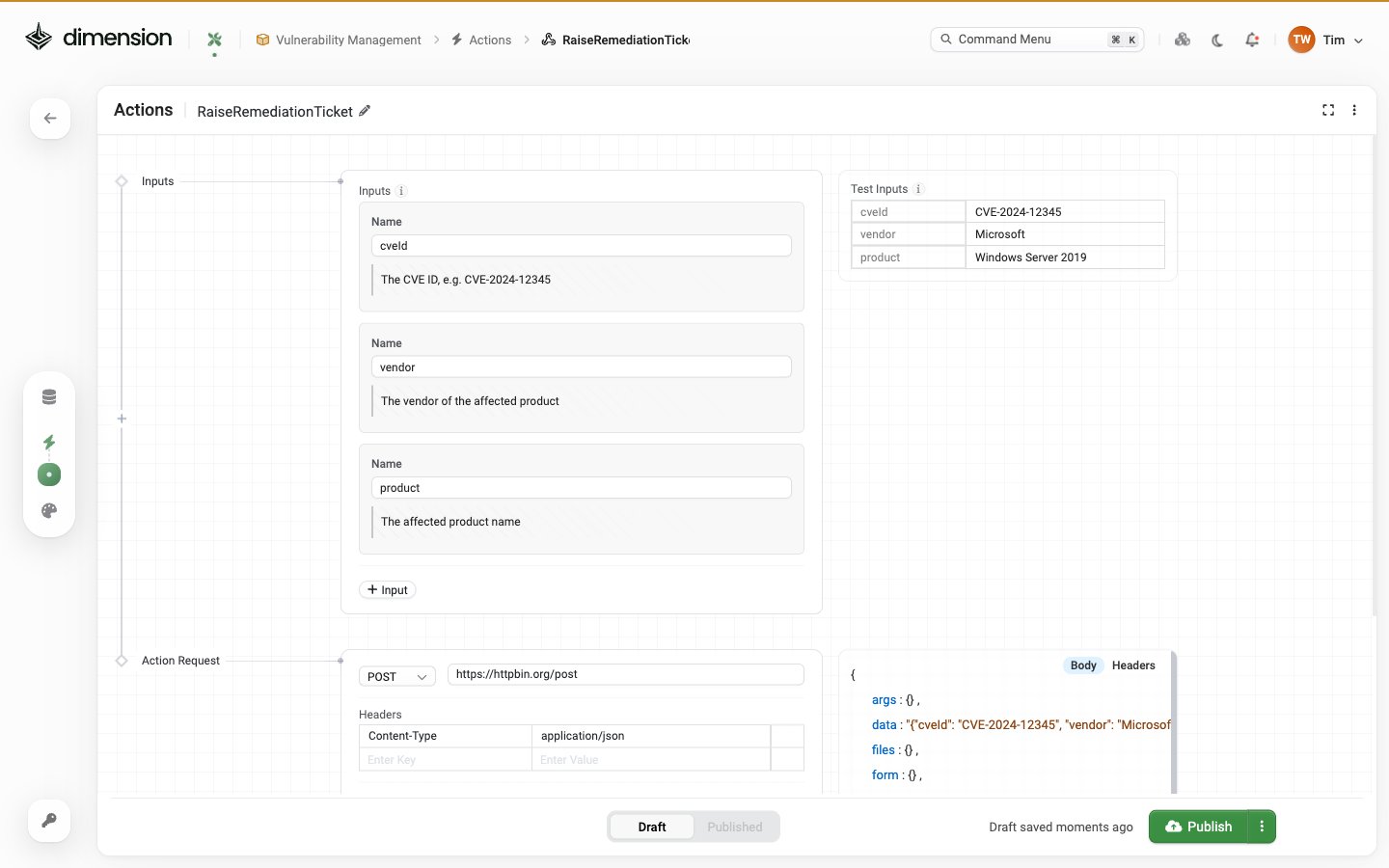
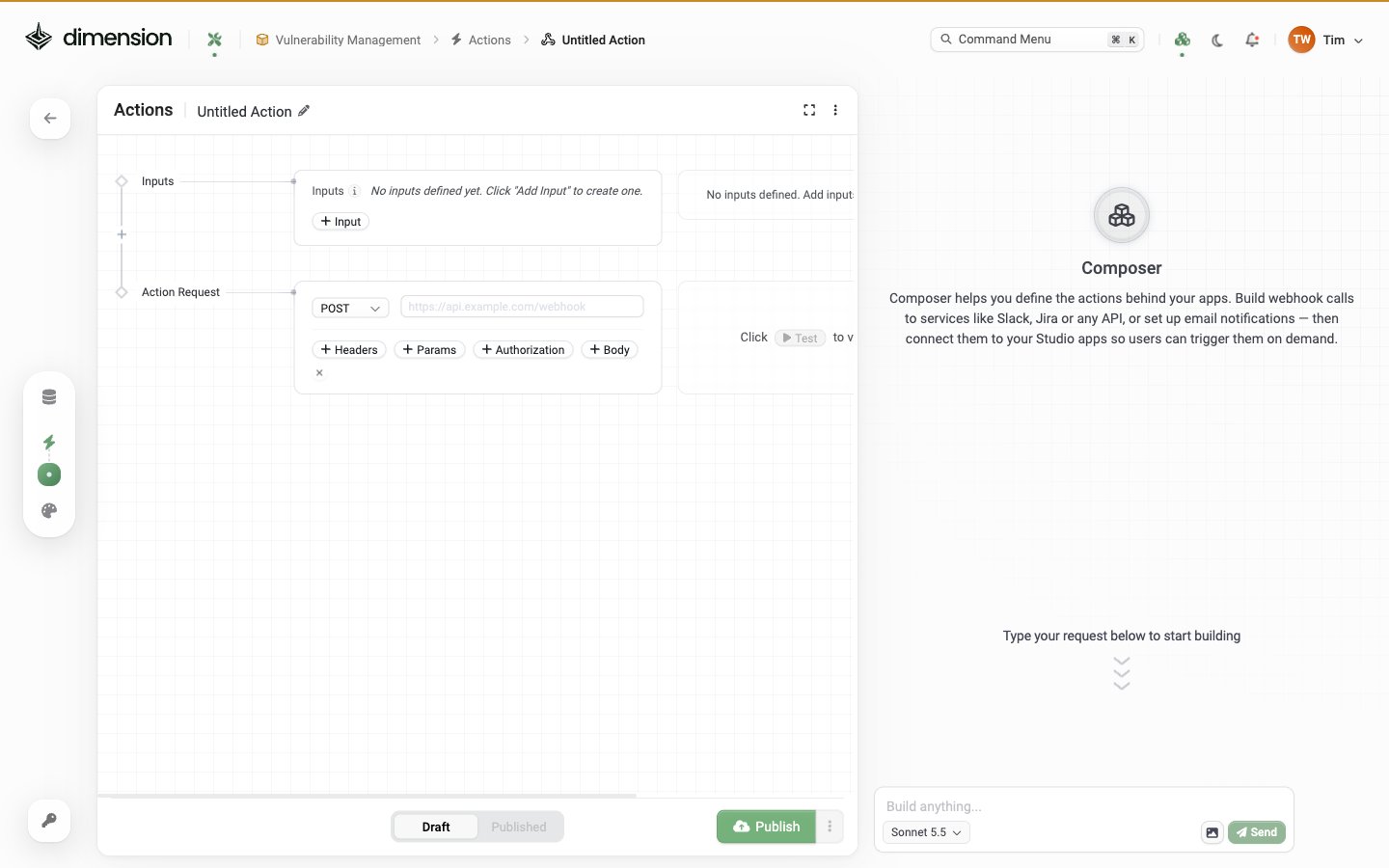
Webhook action editor for RaiseRemediationTicket: an Inputs node defining cveId, vendor and product, an Action Request node sending a POST to https://httpbin.org/post with a Content-Type application/json header, test values at the top right, and the test response showing the inputs in the request body Two nodes on the canvas:

Inputs node

Defines the data your apps will pass in at runtime. Click + Input to add a new named parameter — each has a name and description. The right-hand Test Inputs column lets you supply sample values without touching production.

Action Request node

The HTTP call to make. Method dropdown (POST by default, but supports the same seven methods as Data Feeds — GET, POST, PUT, DELETE, PATCH, HEAD, OPTIONS), URL field, and addable sections: Action Request sections expansion showing add chips for Headers, Params, Authorization, and Body — a subset of the Data Feed sections (no Pagination/Data Path/ID Path since Actions send rather than fetch) Notably absent vs. Data Feeds: no Pagination, Data Path, ID Path. Actions are send-only — they don’t iterate or parse responses.
Test feature

Once configured, the right-hand Test panel runs the Action with your Test Inputs and shows the response inline. This is the key “test before publish” loop — no need to wire it into a Studio app first.

Email Action editor

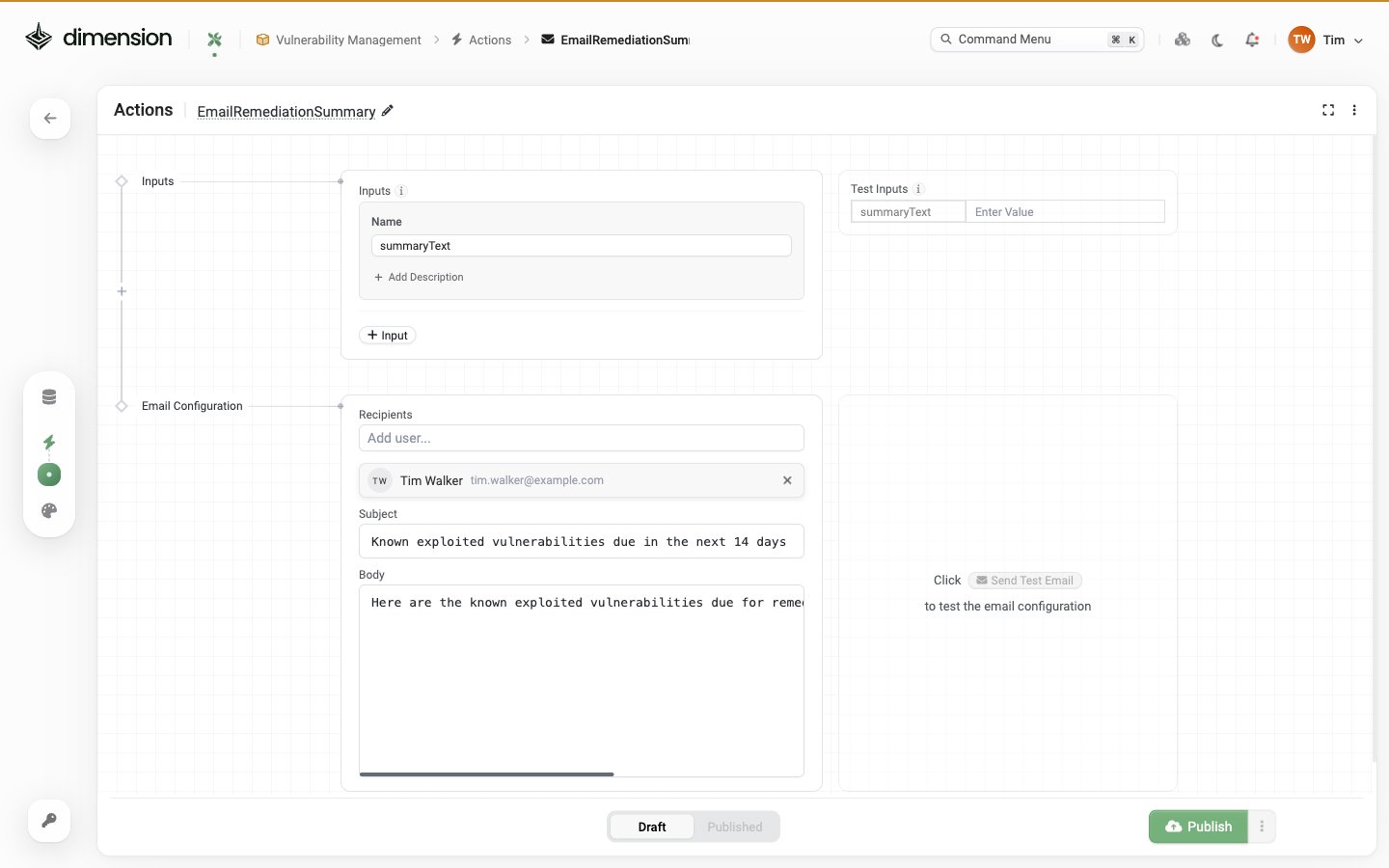
Email action editor for EmailRemediationSummary: an Inputs node with summaryText, Test Inputs on the right, and an Email Configuration node with Recipients (Tim Walker), a Subject, a Body and a Send Test Email button The Inputs node behaves identically to Webhook. The second node is an Email Configuration instead of an Action Request — three fields:
  • Recipients — autocomplete picker
  • Subject — single-line text (supports {{input.name}} interpolation)
  • Body — multi-line text (supports {{input.name}} interpolation)

Tenant-user-only recipients
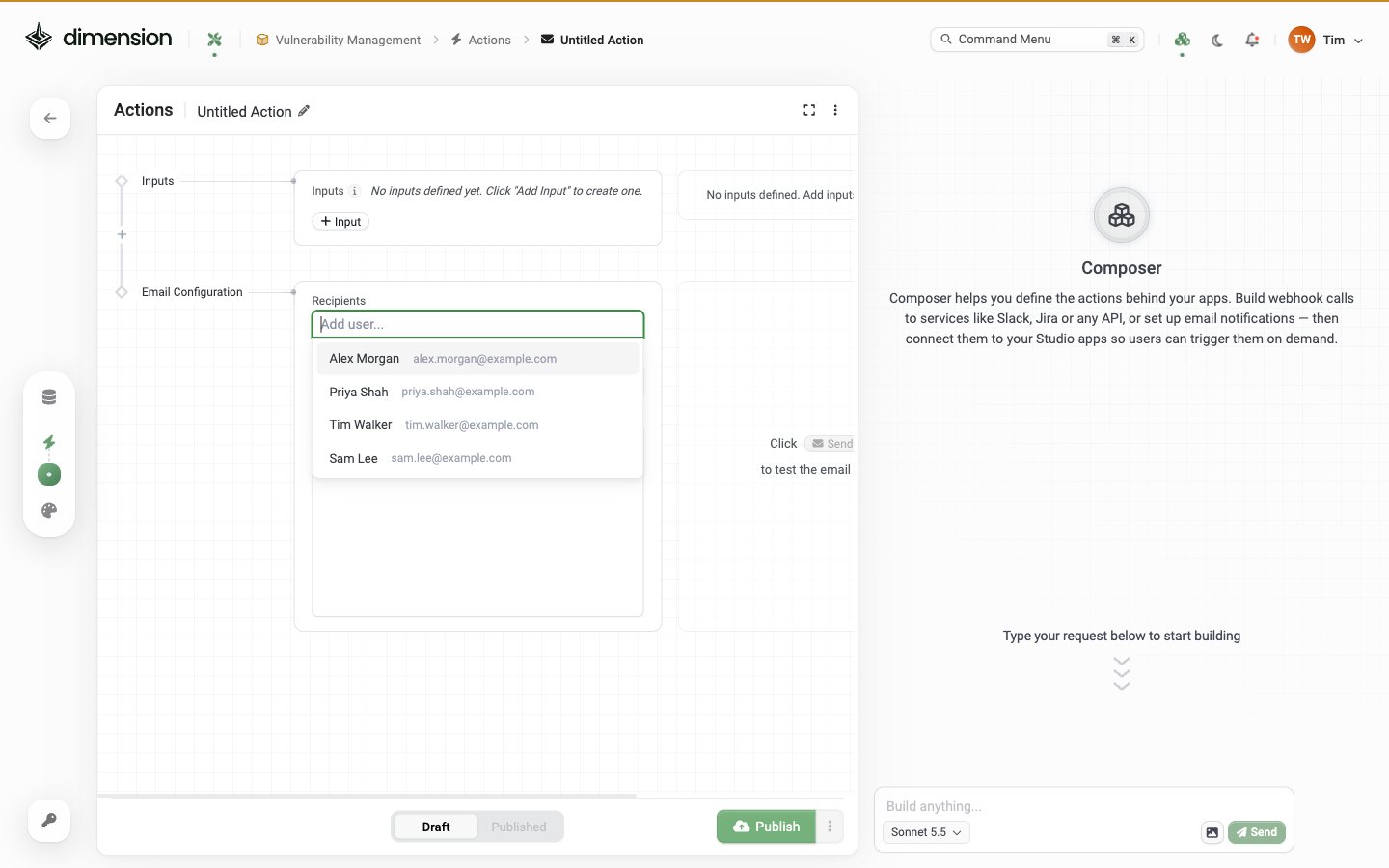
Recipients autocomplete dropdown when focused, listing tenant users only, such as Alex Morgan alex.morgan@example.com, Priya Shah, Tim Walker and Sam Lee, confirming Email Actions cannot send to arbitrary email addresses
Recipients are restricted to tenant users. The Recipients field is an autocomplete of users in your ThreatAware tenant, not a free-form email input. You can’t send Email Actions to external addresses — by design, for security.If you need to email external parties, use a Webhook Action against an email API (SendGrid, Postmark, AWS SES) instead.
The right-hand pane includes a ▶ Send to test the email button.

How apps invoke Actions

An Action becomes available inside any Studio app in the same workspace once published. Apps invoke Actions when:
  • A user clicks a button you’ve wired up to one (e.g. “Open Ticket”)
  • A form is submitted (Action receives the form data)
  • A condition is met inside the app’s logic
Wire up Actions from the Actions picker at the bottom of the Studio editor, the same place you wire up Data sources. Before an action runs, the person using the app is asked to approve it. See Approving actions.

Actions list page

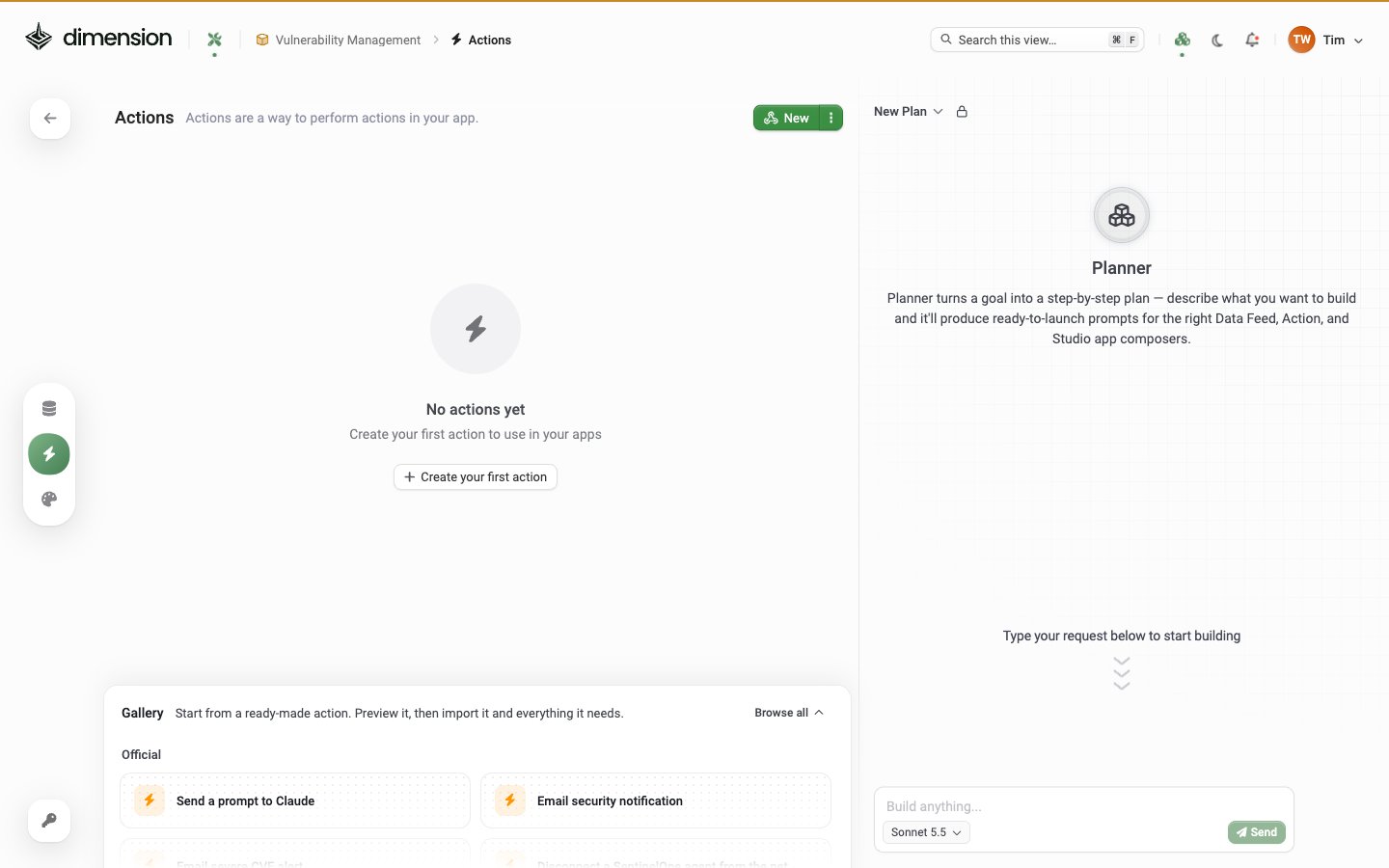
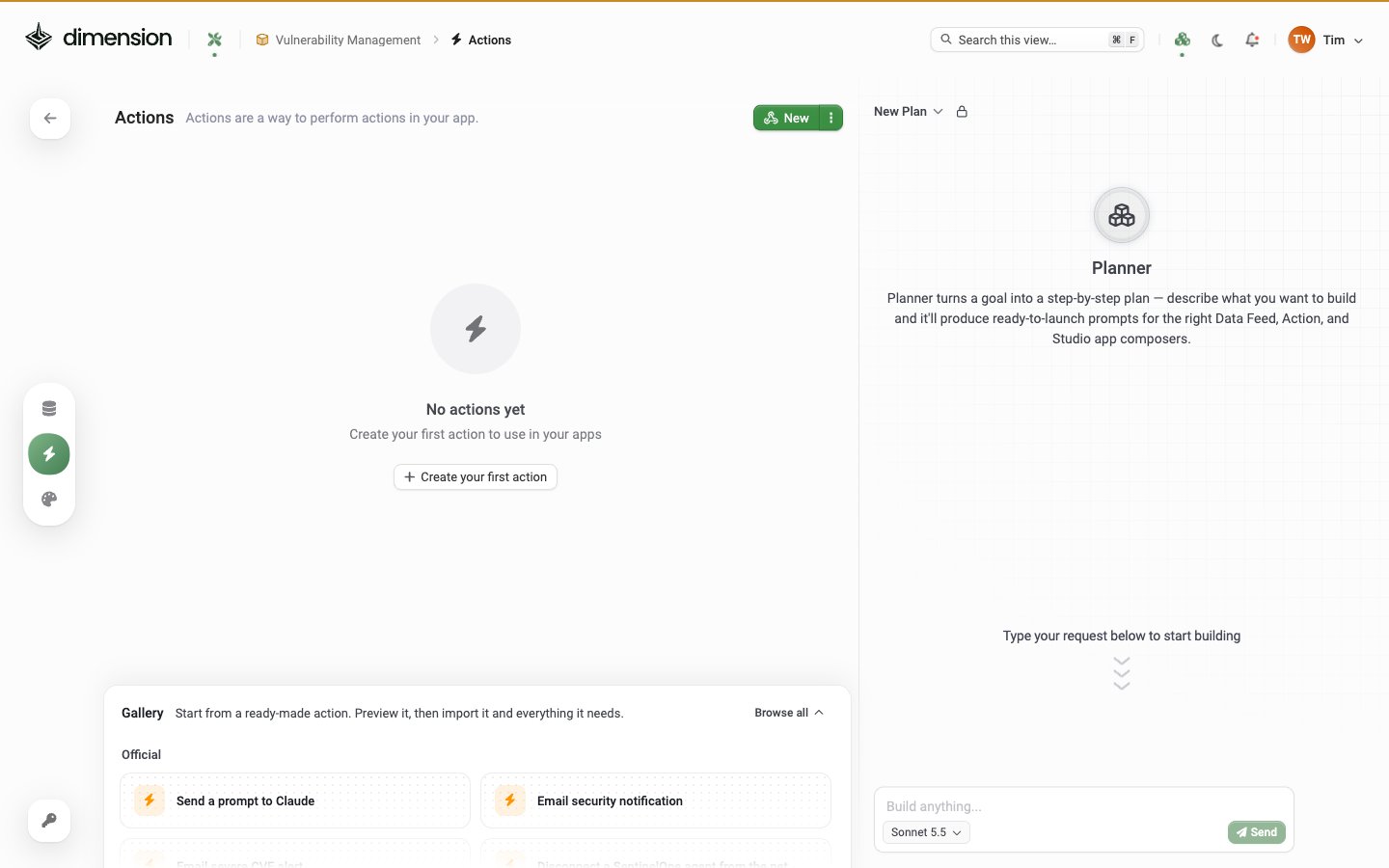
The workspace’s Actions list shows every Action you’ve created. In its empty state the page reads Actions — Actions are a way to perform actions in your app. with a centred No actions yet — Create your first action to use in your apps prompt and a + Create your first action button. Below it, a Gallery offers ready-made actions you can preview and import. Actions page in a new workspace: No actions yet with a Create your first action button, a + New button, a Gallery of ready-made actions (Send a prompt to Claude and Email security notification), and the Planner on the right The + New button (top-right of the list) opens the Action type picker — Webhook or Email.
Where Actions appear

Actions page opened from the lightning icon in the left rail, showing No actions yet, the Gallery of ready-made actions, and the Planner After publishing, an Action shows up in:
  • The Actions counter on the workspace overview
  • The Actions tab in the left rail (lightning icon)
  • The Actions picker inside the Studio editor when building an app

Explore further

Triggers & Invocation

How Studio apps fire Actions — button clicks, form submits, conditional logic

Integrations

Patterns for Slack, Jira, ServiceNow, PagerDuty, custom webhooks, and email
No standalone triggers in Dimension. Actions don’t have their own cron schedules or external triggers — they’re invoked by Studio apps. To run something on a schedule, build a Studio app with auto-refresh that invokes the Action on the cadence you need.