

The approval prompt
When someone clicks a button (or does anything else) that runs an action, the app shows an Approve Actions panel before anything is sent.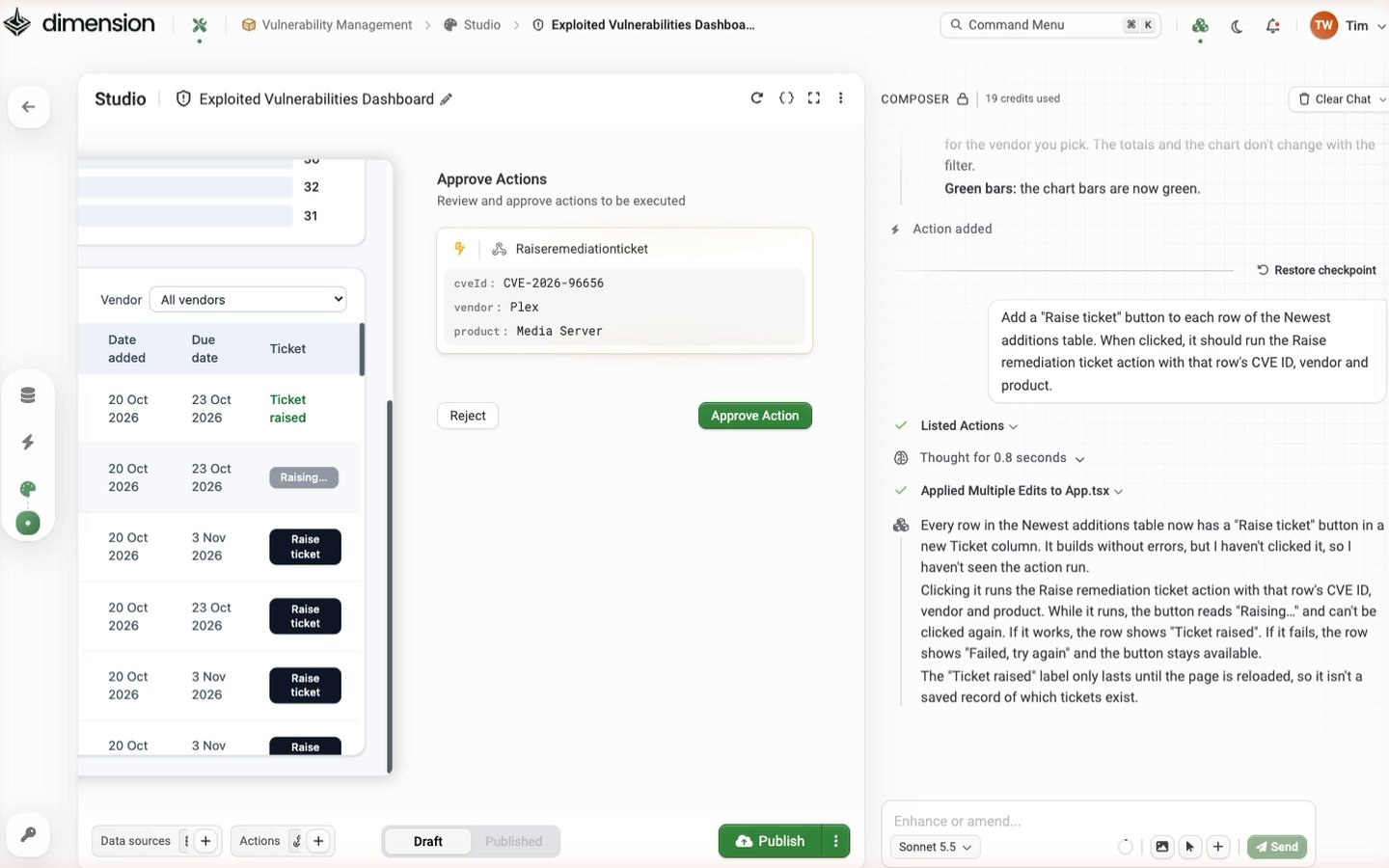
- The name of the action.
- Each input the app is passing to it, with the value for this run. In the example above, that’s the CVE ID, vendor and product from the row that was clicked.
Check the values before you approve. They’re what the action sends.
Skipping the prompt for approved actions
By default, every run of every action asks for approval. An admin can change this in Settings → AI → Allow approved actions:Allow applications to run actions without user confirmation, if they have been approved. When enabled, users can choose ‘Allow (Don’t ask again)’ when approving an action.It’s off by default. When it’s on, the prompt also offers Allow (Don’t ask again), so people can stop being asked about an action they’ve already approved. See Settings → AI.
What’s recorded
Each approved run is written to the audit log (Settings → Logs → Audit Log) as Invoked Dimension Action, with the email of the person who approved it and the time. Building and changing actions is recorded too: Created Dimension Action, Tested Dimension Action and Published Dimension Action.Writing apps that handle rejection
Because a rejection comes back to the app as an error, tell AI Composer what the app should do when an action doesn’t run. For example:See also
Triggers & Invocation
The ways an app can run an action.
Settings
The AI settings and the audit log.