

Draft and published
The bar at the bottom of each editor shows which state you’re looking at, with a Draft / Published switch, when it was last saved (for example “Draft saved 1 minute ago”), and the Publish button. More options are in the menu next to Publish. For apps, that’s where Unpublish is.
After you publish, the bar reads Published moments ago. The Publish button is greyed out until there’s a newer draft to publish.
What publishing does
- Data feed
- Action
- Studio app
Before a feed is published, Dimension asks you to review its schema.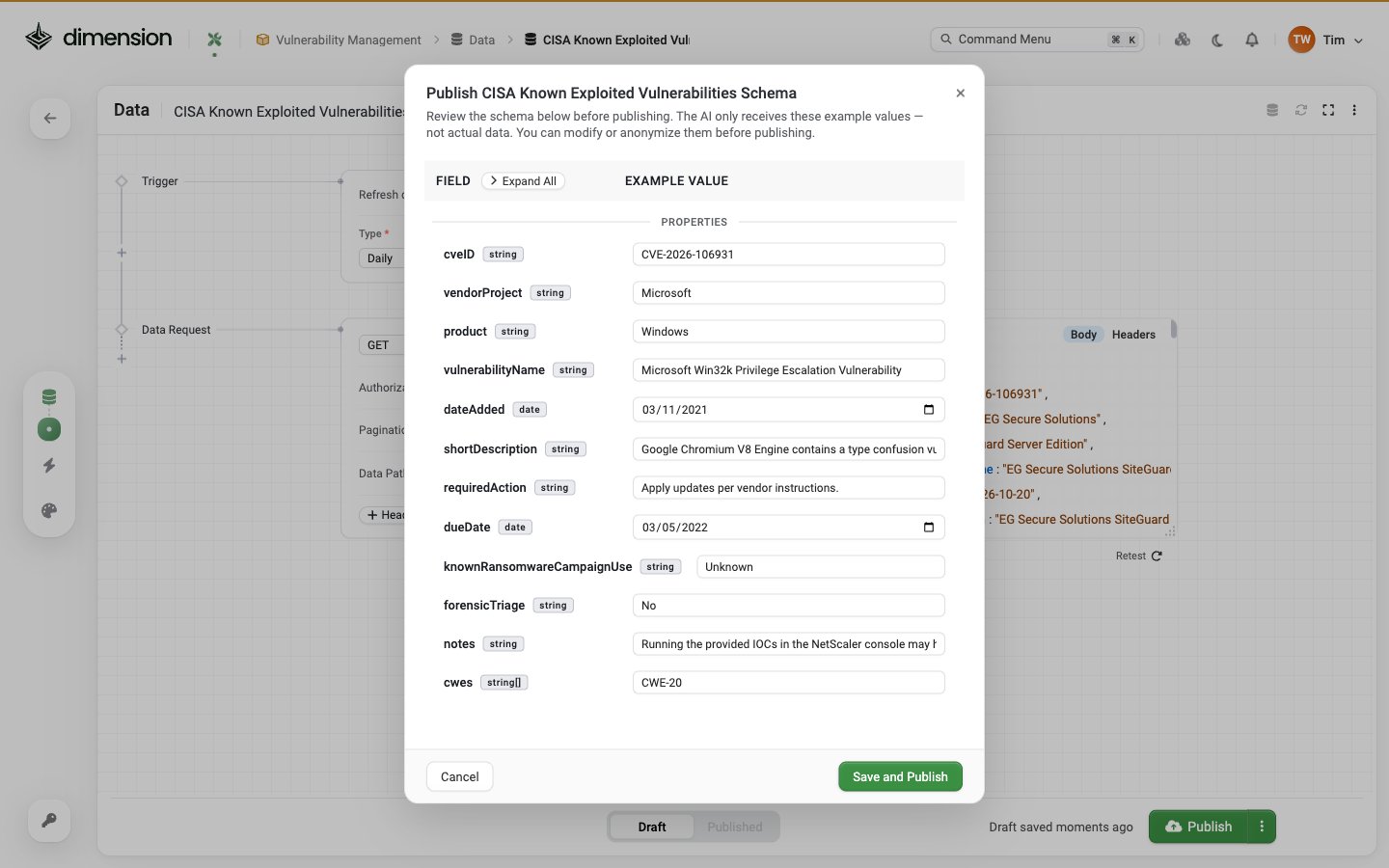
- Runs for the first time. The status at the top right shows Starting, then Completed, with when the next fetch is due if it runs on a schedule.
- Can be added to Studio apps as a data source.
Testing before you publish
- Data feeds: use Test in the editor to check the response before you publish.
- Actions: use Test with sample values. The request really is sent, so point webhooks at a test endpoint while you build.
- Apps: buttons in the Studio preview that run actions really run them, after you approve.
Going back
To undo changes to an app’s draft, use Restore checkpoint in the Composer chat. See Inspect & iterate.See also
Approving actions
What happens when an app runs an action.
Workspaces
Who can see what you publish.