

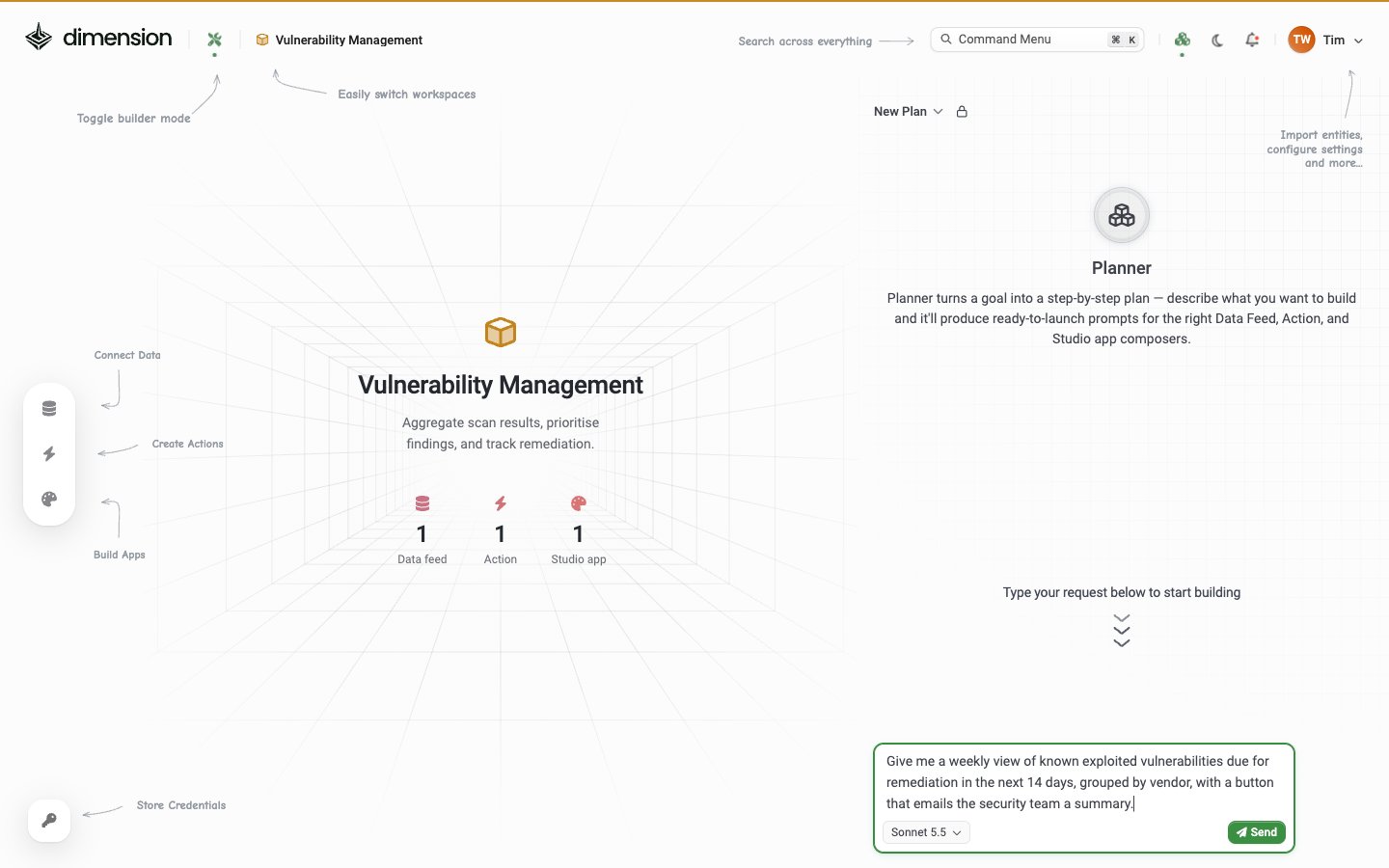
Anatomy
The Planner panel has four parts:- Plan menu (top-left of the panel) — shows New Plan or the current plan’s name. Open it to start a new plan or pick a saved one
- Planner intro — “Planner turns a goal into a step-by-step plan — describe what you want to build and it’ll produce ready-to-launch prompts for the right Data Feed, Action, and Studio app composers.”
- Build anything… textbox at the bottom — your goal, with a model picker (for example Sonnet 5.5)
- Send button — submits the goal to the Planner
When to use Planner vs. Composer directly
Planner shines at the “blank-page” moment. It breaks a goal down so you don’t have to context-switch between the three Composers manually.
A typical run
1
Type a goal
Drop a plain-language description into the Build anything… textbox at the bottom of the Planner panel. Be specific about the data sources and the output:Click Send.
2
Planner produces a plan
Planner first reads what’s already in the workspace (you’ll see steps such as Read DataFeed, Listed Actions and Listed Studio Apps), then writes the plan. Each step is a card labelled with its type, such as ACTION or STUDIO APP, followed by a short explanation of the order to build them in: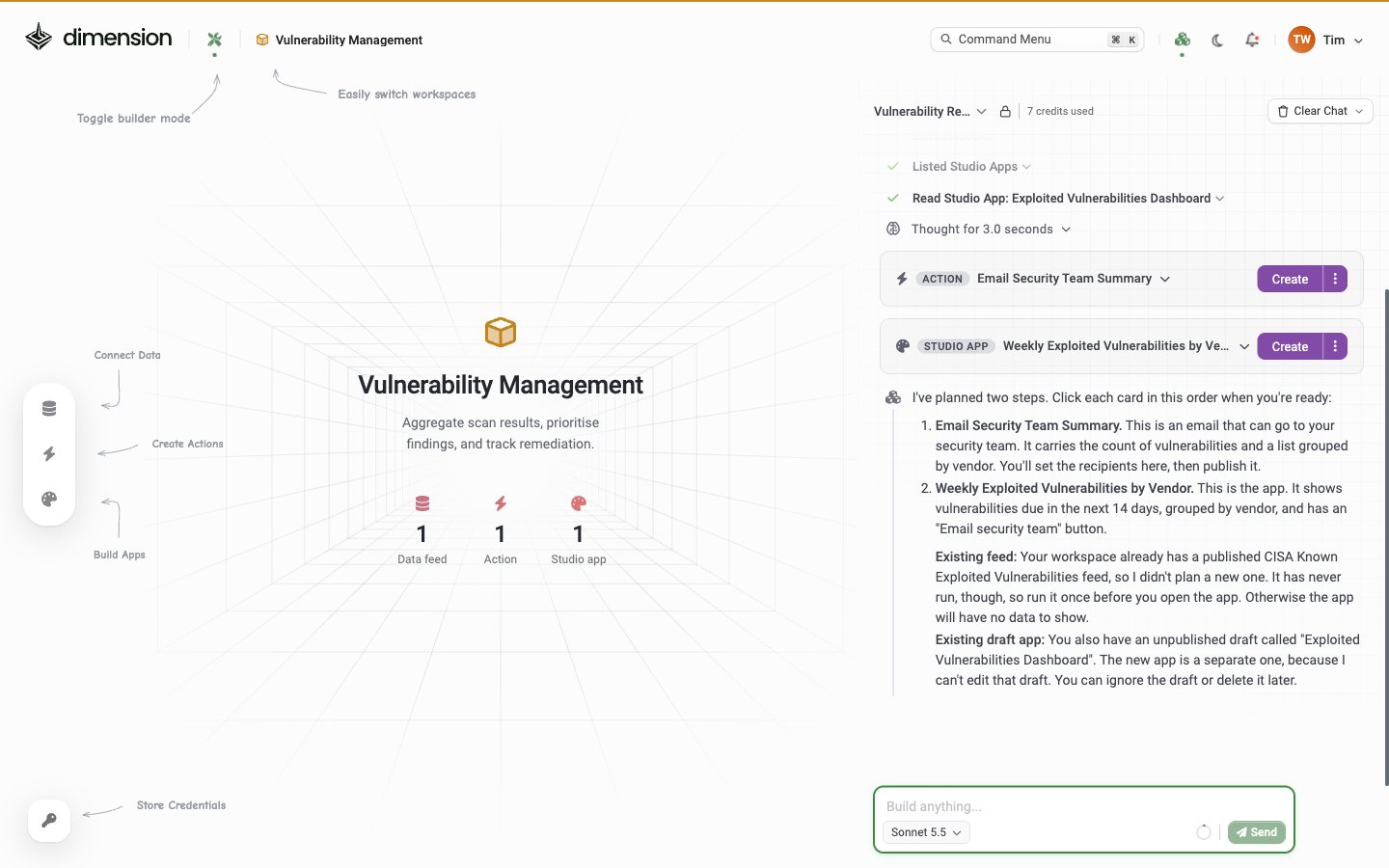
3
Check and launch each step
Click the arrow next to a step’s name to read the prompt it will send: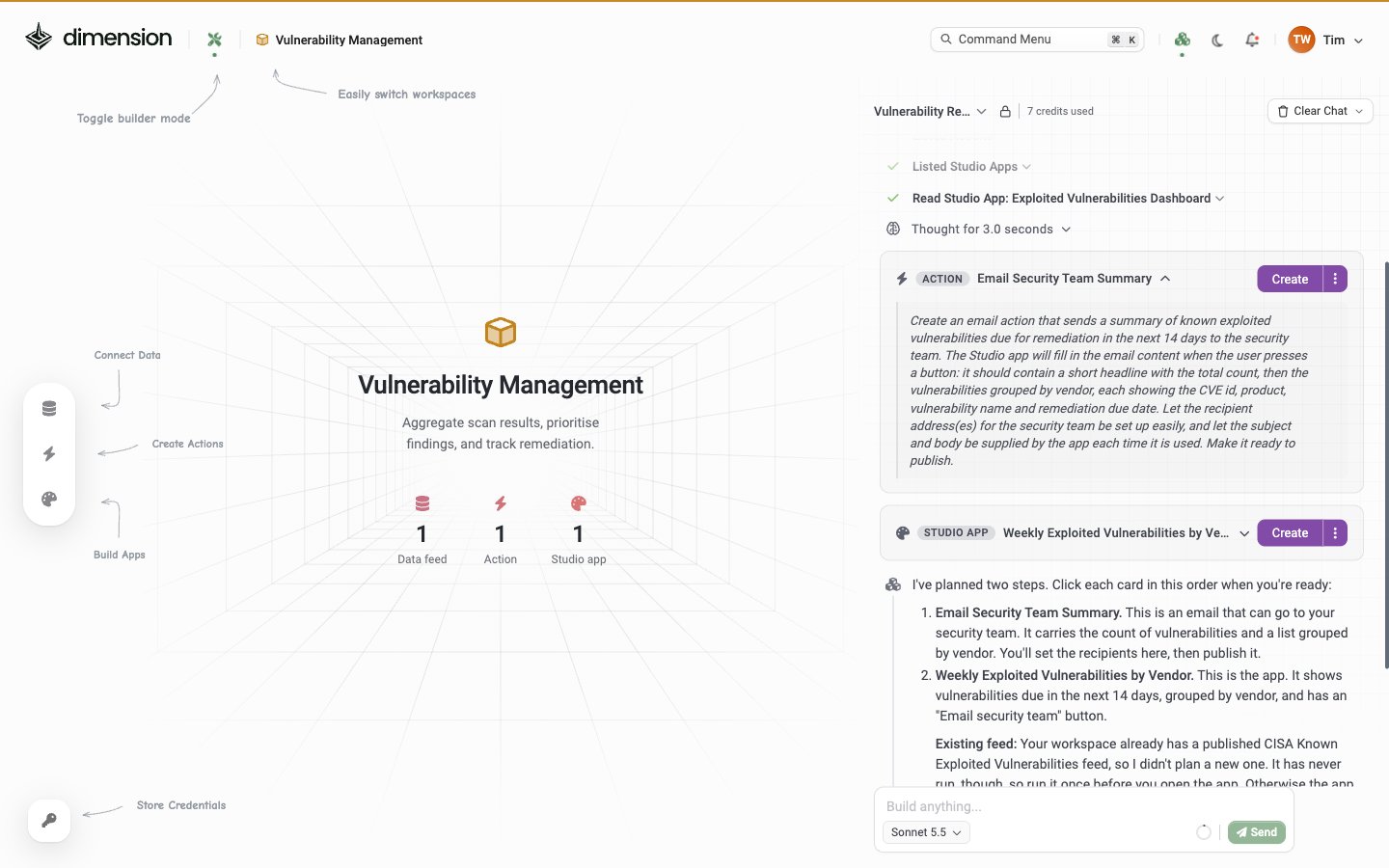
4
Reuse what's already there
Planner takes the workspace’s existing data feeds, actions and apps into account. In the example above the workspace already had a published CISA feed, so the plan reused it rather than adding a new one, and it pointed out that the feed had never run.
Saved plans
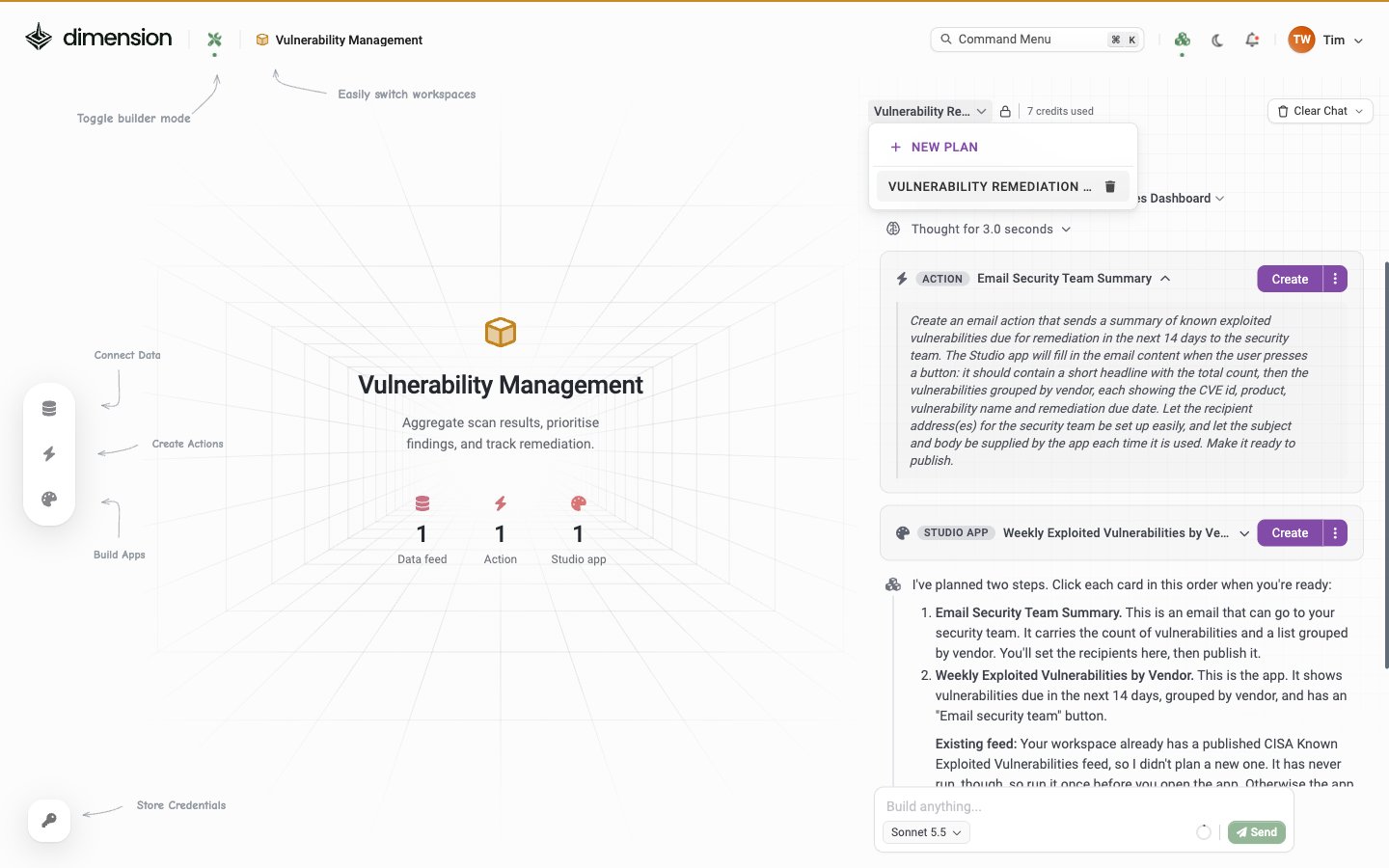
- + New Plan — start a fresh plan, clearing the current one from view
- Select an existing plan — pick a saved plan from the list (e.g. “Vulnerability Remediation”)
- Delete a plan — the trash button next to each saved plan name
Workspace context
The Planner runs inside the active workspace and uses the same schema-only AI context as the individual Composers. Turning AI data access off under Settings → AI keeps real values out of every Composer (Planner included) without disabling the planning step.Limitations
- Planner is a starting point, not an autopilot. Each Composer step still needs you to review, refine, and publish.
- Plans don’t execute themselves — opening a step launches the relevant Composer so you can read, tweak, and confirm before anything goes live.
- Planner uses AI credits like any other Composer interaction. Check usage under Settings → Usage.
- The plan may shift as you build — Planner re-evaluates outstanding steps each time you reopen a plan, so the numbered order isn’t immutable.
Related
Data Feeds
What Composer wires up when Planner suggests a Data step
Studio
The Composer that builds apps from Planner steps
Actions
Webhook + Email integrations that Planner can include in the plan
Workspaces
Plans live inside a workspace, alongside the artefacts they produce