

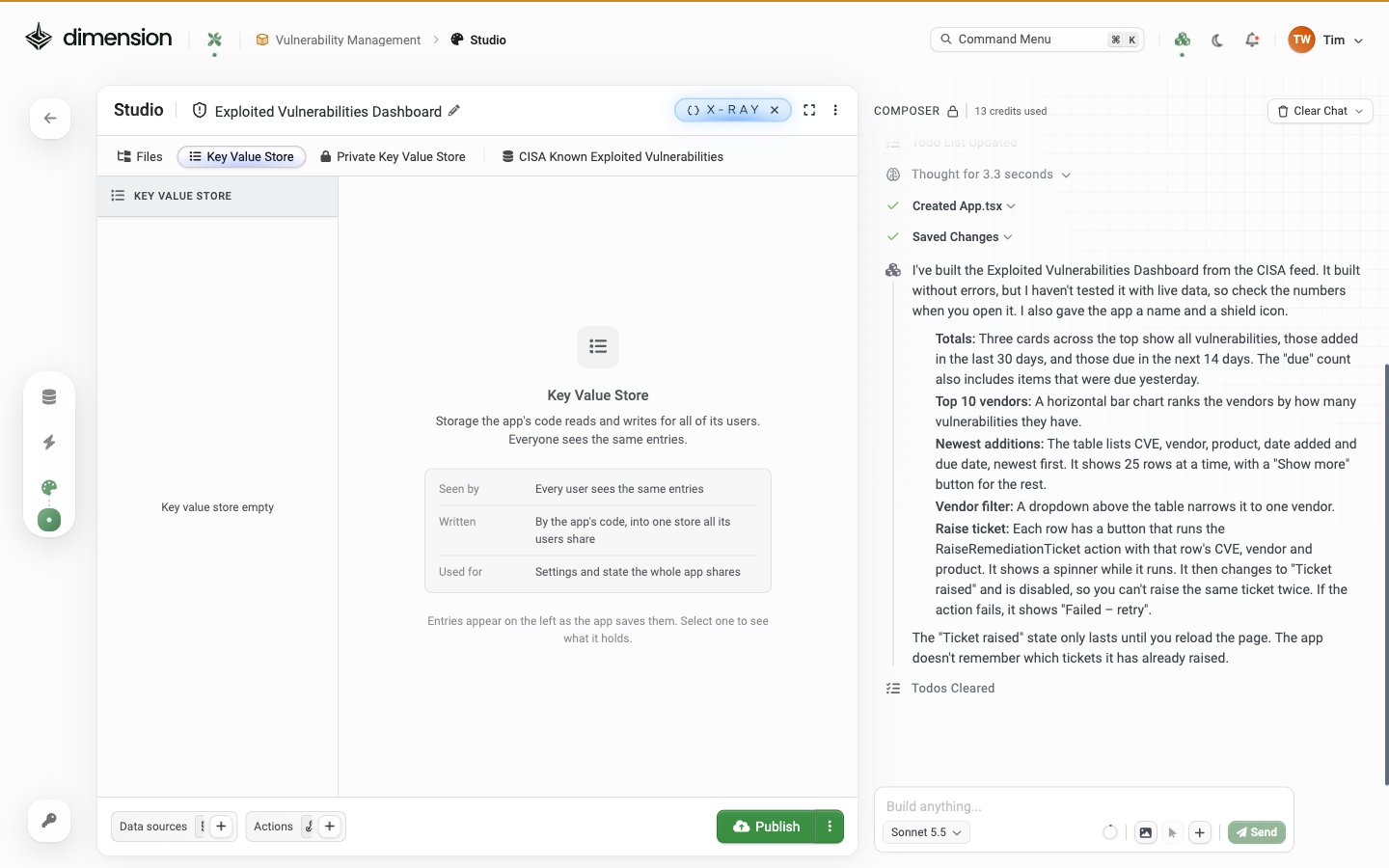
What it’s for
Use the KV store for small bits of state that should survive page reloads — typically things Composer wires up for you in response to natural-language prompts:What it’s NOT for
Composer wiring
The KV store is wired up by Composer in response to natural-language prompts. Tell it what to persist and what key to use:Key naming conventions
Pick consistent prefixes so keys are discoverable in X-Ray. A common convention:
You can ask Composer to follow your convention up front:
Per-user vs per-app values
The KV store is per-app, not per-user, by default. Same app, same KV — every user sees the same data unless you partition it. To partition by user, suffix the key with the user ID:Exposing KV-backed settings in-app
A common pattern: surface KV values via a Settings page in the app’s sidebar so users can edit their own preferences:Watermarks for incremental processing
For sync-style work where you only want new records since last run:Multi-step forms with KV resume
Inspecting the live store
Open the editor’s X-Ray panel and switch to the Key Value Store tab. When keys exist, select one in the left rail to view its contents in the main pane. Use this view to:- Verify a write happened during testing
- Inspect the current value for a key
- Audit per-user partitioning — confirm keys are scoped as intended
Security considerations
- The KV store is scoped to the app — apps in other tenants cannot read it
- Do not store credentials, passwords, or API keys here — use the Variables panel with lock-icon encryption in Data Feeds and Actions instead
Migration & export
KV store contents are app-scoped. When you clone an app via the editor’s ⋯ → Clone menu, the clone starts with its own (empty) KV store — preferences from the original do not carry. Deleting an app removes its KV store.See also
Studio overview
Editor anatomy, X-Ray, KV store in context
AI Composer
Composer prompts that wire the KV store automatically
Themes & Branding
Per-app Settings pattern backed by the KV store