

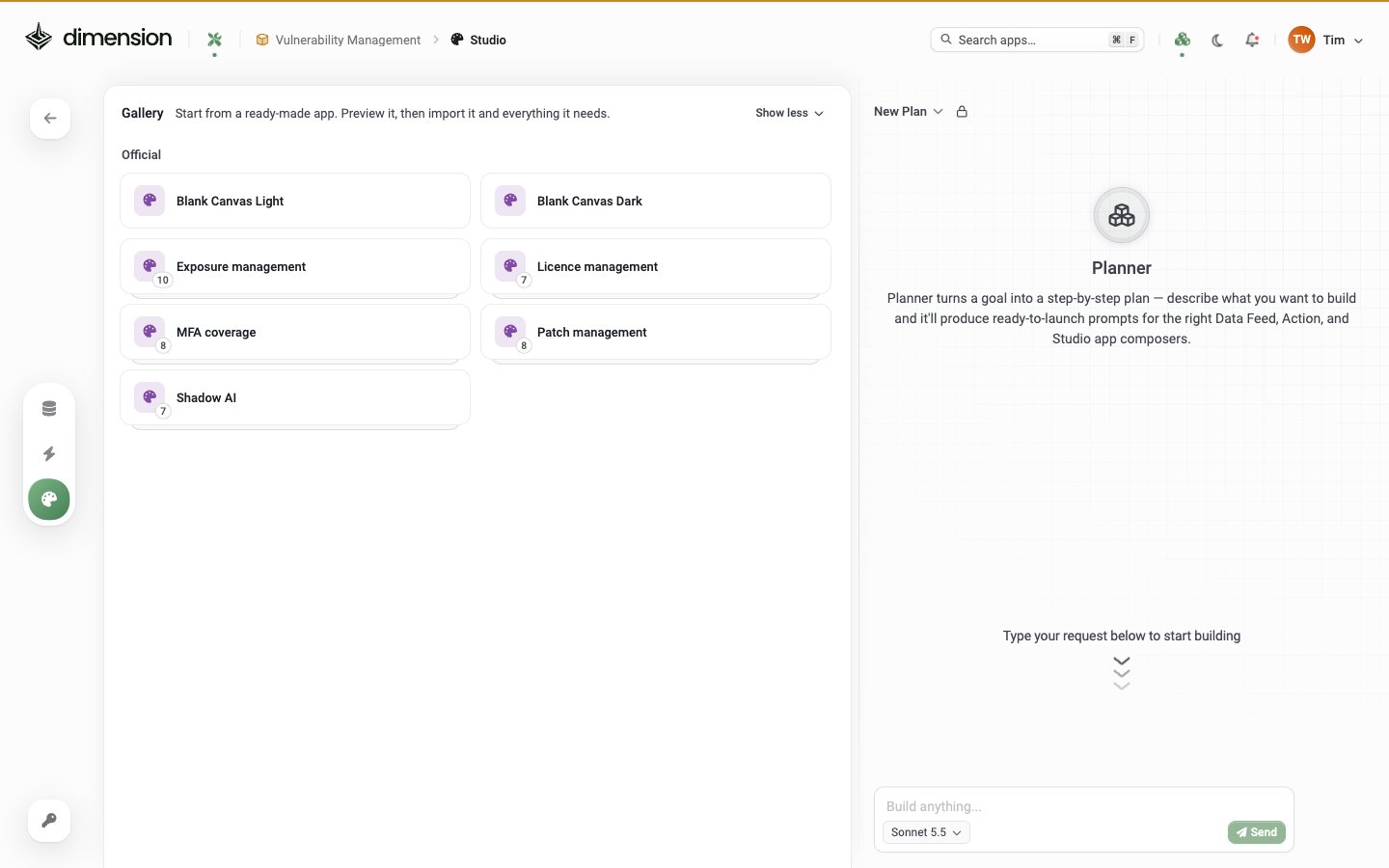
The apps at a glance
The Gallery also has Blank Canvas Light and Blank Canvas Dark, empty starting points for building your own app.
How to add one to your workspace
1
Open the Gallery
In Builder Mode, open Build Apps (the palette icon in the left rail). The Gallery sits below your apps. Click Browse all to see every template.
2
Preview the stack
Click a template. The preview is read-only and lists every item in the stack: the Studio app, its data feeds and its actions.
3
Import it
Click Import. The import screen shows what will be added and asks for the values the stack needs, such as your Microsoft credentials or your ITSM details.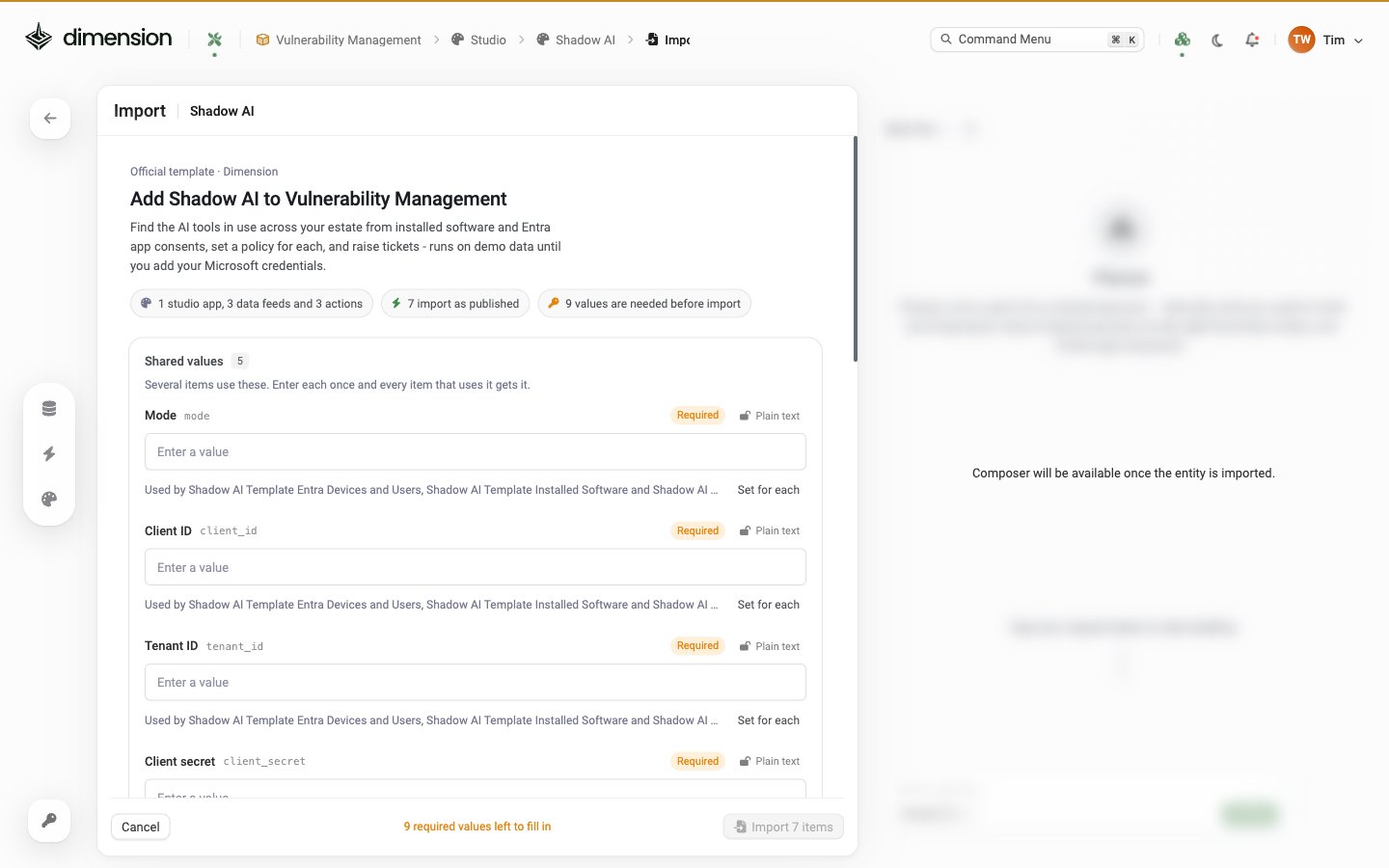
4
Use it, then make it yours
The items import as published: the app is visible to everyone in the workspace, data feeds start fetching on their schedule, and actions are ready for the app to call. Change anything afterwards in the Composer, just like an app you built yourself.
Every value can be changed later in its item’s editor. Encrypted values are never shown again, and never leave the workspace when it’s exported or saved to the Gallery.
Related
Build your first app
Start from a blank canvas instead
Tutorials
Step-by-step builds for common security apps
Workspace credentials
Store keys once and reuse them across a workspace
Approving actions
What happens when an app runs an action